
私たちは、サイト全体の設定はサイトの動作を構成することですが、ベンダーグローバルの設定は、サイト全体の設定からベンダーに許可されているもの\を指定するために行われていることを上記で見ました\たとえば、出荷と支払の両方の設定をサイト全体の設定で YES に設定した場合、ここで違いがあります。仕入先が独自の送付方法を作成できるようにするが、支払方法のコンフィギュレーションを許可したくない場合。あなたが手にしておきたいこと。したがって、'支払のコンフィギュレーションを許可する' を仕入先グローバル設定で知るように設定する必要があります。
仕入先固有の設定:
各仕入先がドロップダウンに追加されていることを以下の画面で確認できます。仕入先の設定はベンダーグローバル設定と同じですが、これらはデフォルトのベンダーグローバル設定を上書きします。
マルチベンダーストアのバックエンドからの作成
ここではサイト管理者がベンダーストアまたはサブサイトを作成します。それ以外の場合は、ベンダーはフロントエンドから登録できます。それは下に来ている.〜ベンダーのフロントエンドにサインアップする設定〜ユーザーがベンダーになることを要求できるようにするには、まず、ベンダーになるために要求できるユーザーのタイプについて、当社のマルチベンダーのvirtuemartプラグインを伝える必要がありますか?下の画像を参照してください.〜設定した後、次のリンクを指すフロント エンドのメニュー項目を作成する必要があります。「ベンダーになる」というキャプションを付けることができます。リンクは以下に示されています。
index.php?オプション=com_virtuemartJoomla バックエンド >> プラグインマネージャー >> マルチストアプラグイン >> 編集 >> 詳細設定 >> 「ストアワイズ VM 構成」を NO
Main Site: YourMainSite.com
Sub-store 1: substore1.YourMainSite.com
Sub-store 2: substore1.YourMainSite.com
Sub-store 3: anyotherdomain.com
Sub-store 2: substore1.YourMainSite.com
Sub-store 3: anyotherdomain.com
Sub-store 4: any-other-domain.com
Please note that all sub-stores should point to the same (and the only one) Joomla/Virtuemart installation which is YourMainSite.com. One Joomla/VM installation will do it all.
Details about sub store (vendors stores) configuration options
Important: You should TURN OFF native multi vendor option of Virtuemart
Our extension has its own sophisticated multi vendor system. You don't need the basic multi vendor system provided by virtuemart. Please turn that OFF.
Screenshots for GOLD version are given below:
Multi Store Control Center Link (MSCC)
We call it MSCC. Multi store control center used to manage various options available for site wide settings, vendor global settings, individual vendor settings, vendor store creation from back end, store name name change and more.
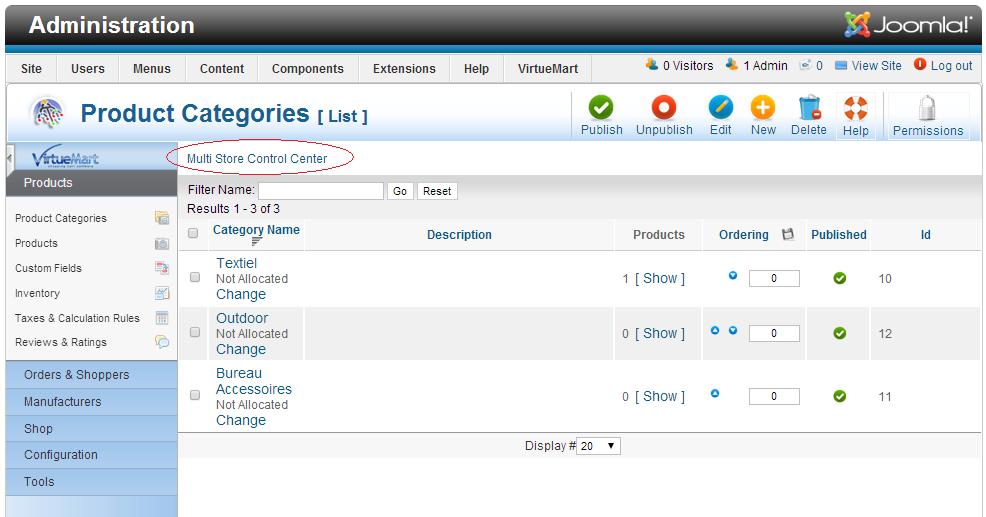
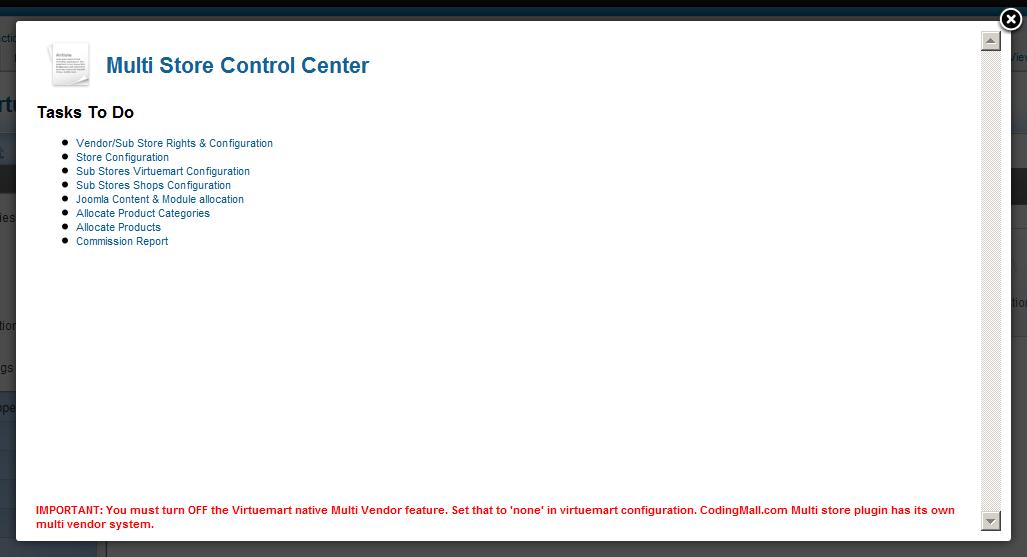
Multi Store Control Center (MSCC)
You see these links here.
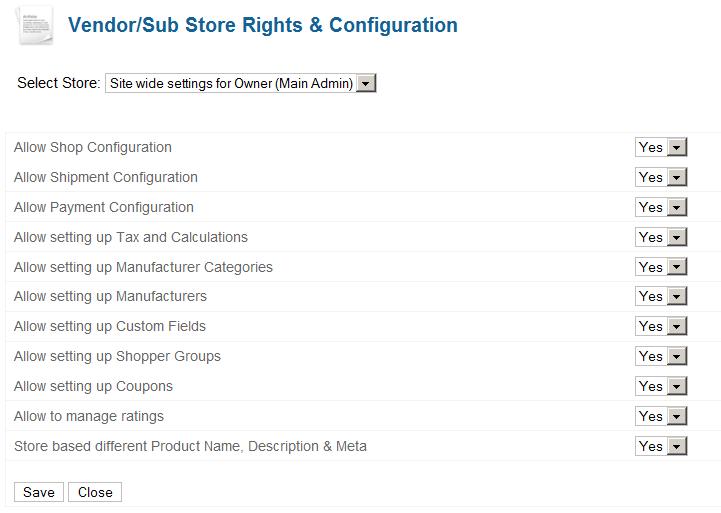
Multi Vendor Rights
This screen controls permission and setups for Multi Vendor Virtuemart plugin.
Site wide settings for Super admins. Super Admins can set what things can be different for different vendors and which items will remain same for the whole site. For example, if each vendor ships his products from his own location, you need different shipment methods for different vendor. This means you need to set 'Allow Shipment Configuration' to YES.
But if you want to receive payments from all buyer directly to you and you want to distribute it later to vendors, then you need to set 'Allow Payment Configuration' to NO. This means the same methods will be applied to all vendors.
Another case. Suppose you want to receive all payments as site owner but you want to have different payment methods available to different vendors. For example, Paypal only to vendor A and Credit Card only to vendor B. It means you need to set 'Allow Payment Configuration' to YES in site wide settings.
Vendor Global Settings:
We saw above that site wide settings are to configure the site behavior but Vendor Gloabal settings are made to specify "what is allowed to vendors out of site wide settings". For example, if you have set both Shipment and Payment configuration to YES in site wide settings but here is a difference. You want to allow vendors to create their own shipping methods but you do not want to allow them to configure payment methods. That thing you want to keep in your hand. Therefore you should set 'Allow Payment Configuration' to know in vendor global settings.
Vendor Specific Settings:
You can see in below mentioned screen that each vendor is added in the dropdown. Vendor settings are same as Vendor Global Settings but these are to override the default Vendor Global settings.
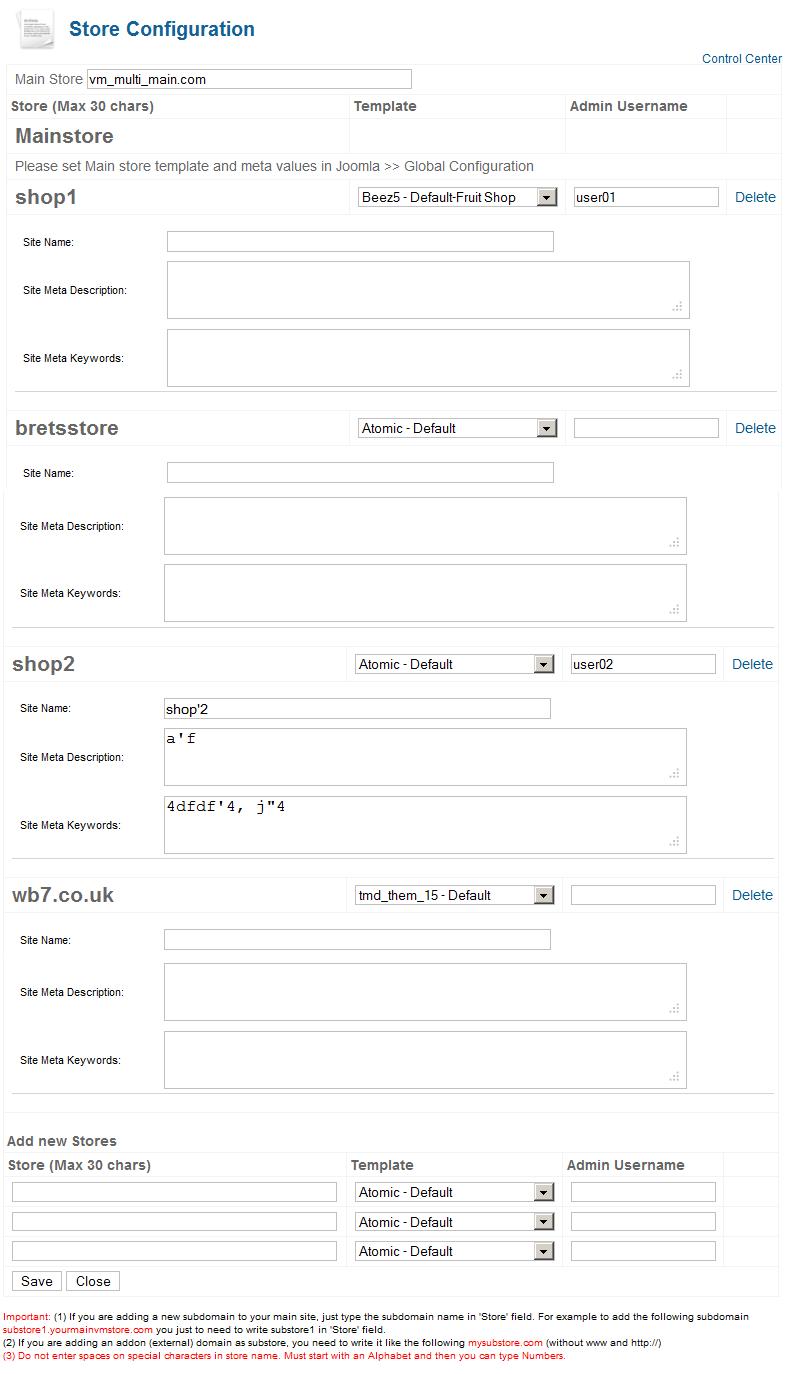
Multi Vendor Stores Creation from Back end
Here the site administrator creates vendor stores or sub sites. Otherwise vendors can register from front end. That is coming below.
Setting up for vendor Sign up in Front End
To allow users to request to become a vendor, first you need to tell our multi vendor virtuemart plugins about which type of user can request to become a Vendor? See the image below.
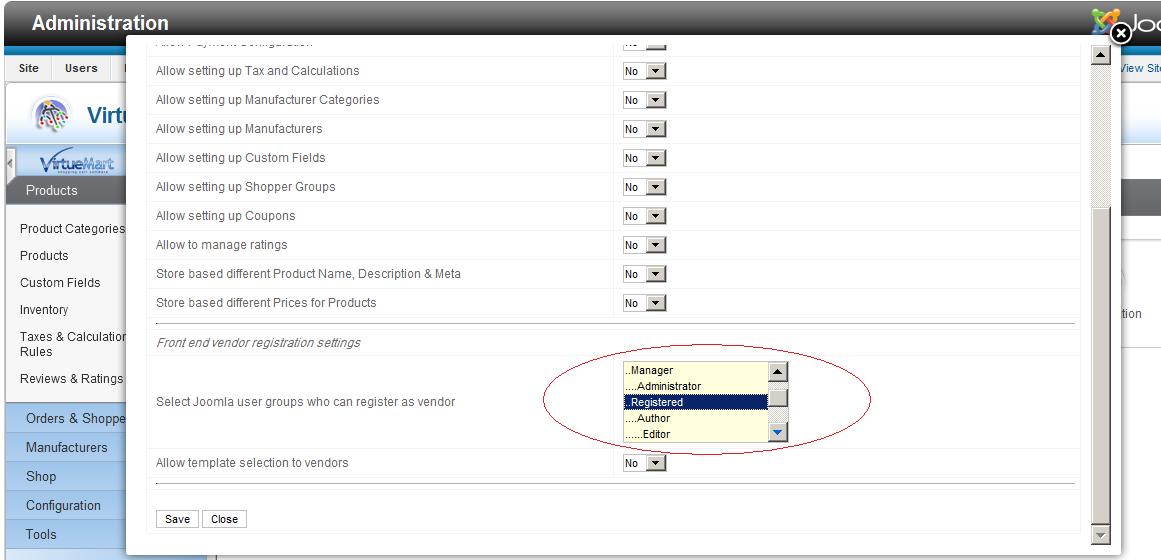
After setting this, you need create a menu item in front end to point to the following link. It can be captioned as 'Become a Vendor'. The link is given below.
index.php?option=com_virtuemart&cmcontroller=regvendor&mstng_task=regvendorform
Up clicking this link in front end, the logged in user will see the following form. Once submitted his store will be activated automatically.
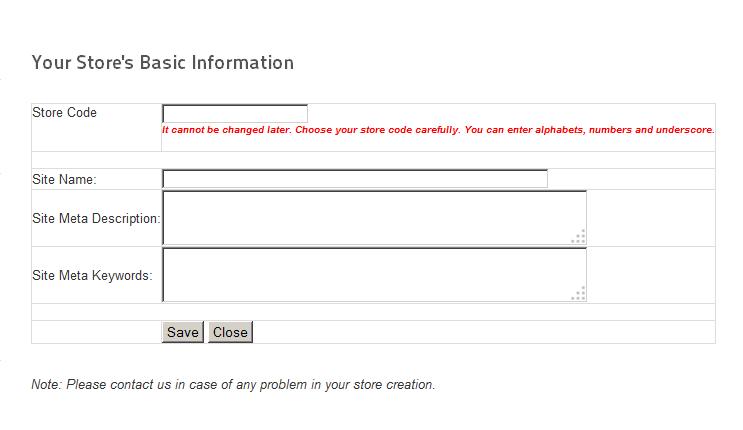
Multi Vendor Virtuemart Config
YOU MUST SET THIS TO "NO" unless you completely understand its use. Normally it should be set to NO.
If you've set 'Store wise VM configuration' to YES, in multi user plugin options (in plugin manager, joomla back end) then you see a dropdown added in virtuemart configuration. This is added by our plugin here to allow you to configure Virtuemart differently for each vendor. If required. If you want same Virtuemart configuration for each vendor then simply go to
Joomla back end >> Plugins Manager >> Multi store plugin >> edit >> Advanced settings >> set 'Store wise VM configuration' to NO
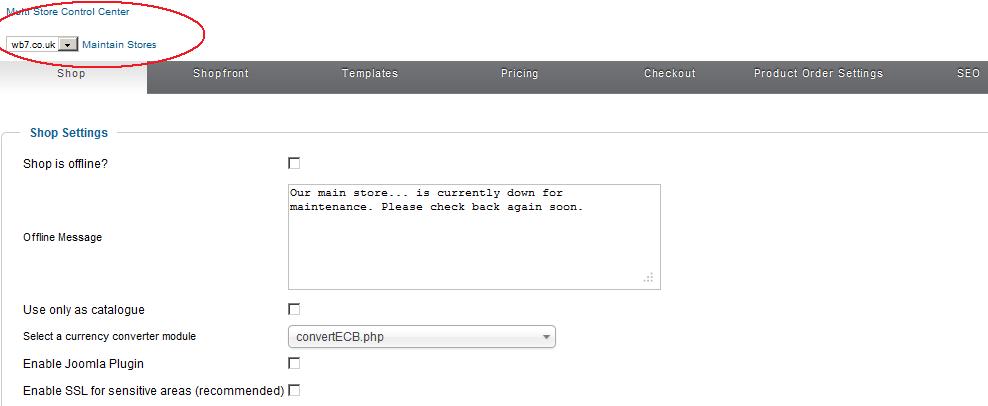
Multi Vendor Shop Configuration
Like above Shop settings can be also be configured differently for each vendor. But this setting is available in Site wide settings define above.
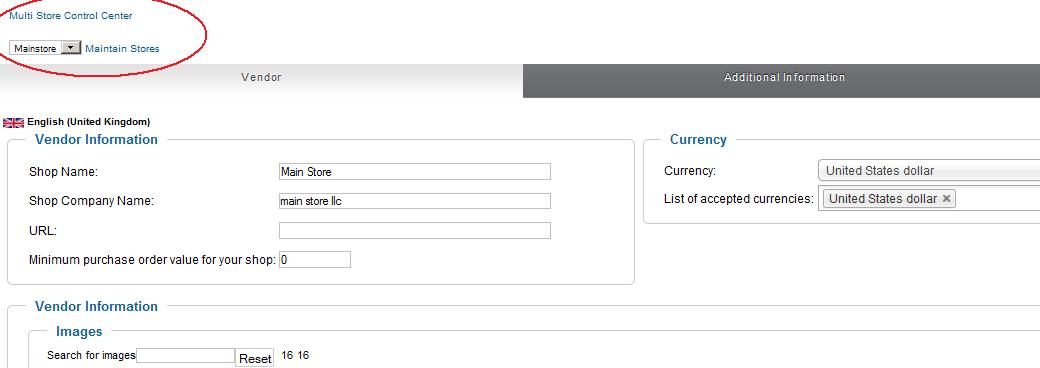
Multi Vendor Joomla Content & Module Allocation
Joomla content and modules (including menu modules) must be allocated before they can be displayed in front end of main site and sub stores (vendor stores).
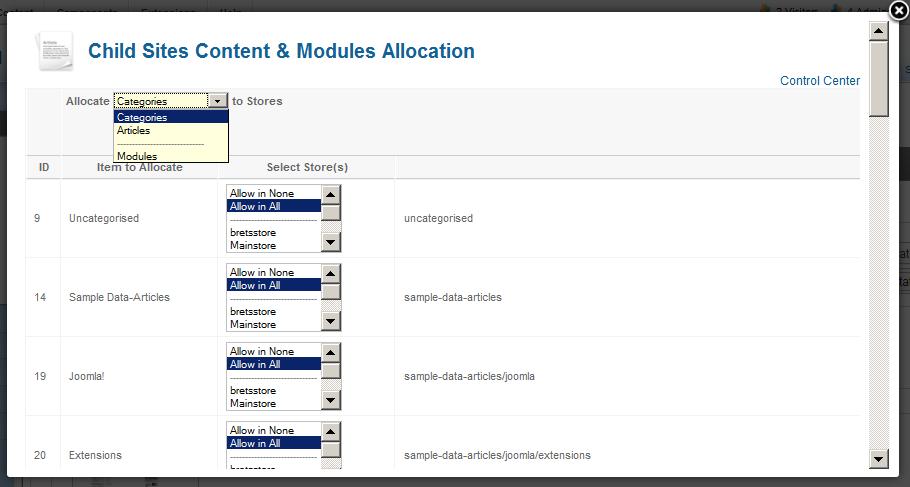
Multi Vendor Category Allocation Link
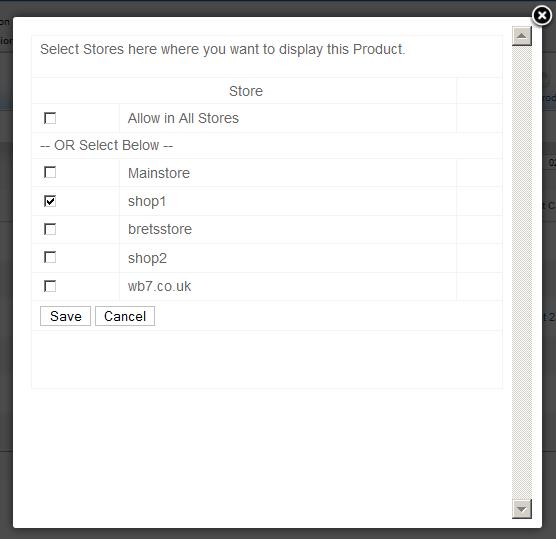
Main site administrator can allocate categories and products to different vendors using this allocation screen and the following. Allocation is not limited to products or categories. Site administrator can allocate shipment methods, payment methods, custom fields etc. also. These options can be turned on/off in Vendor rights screen's "Site Wide Settings" option.
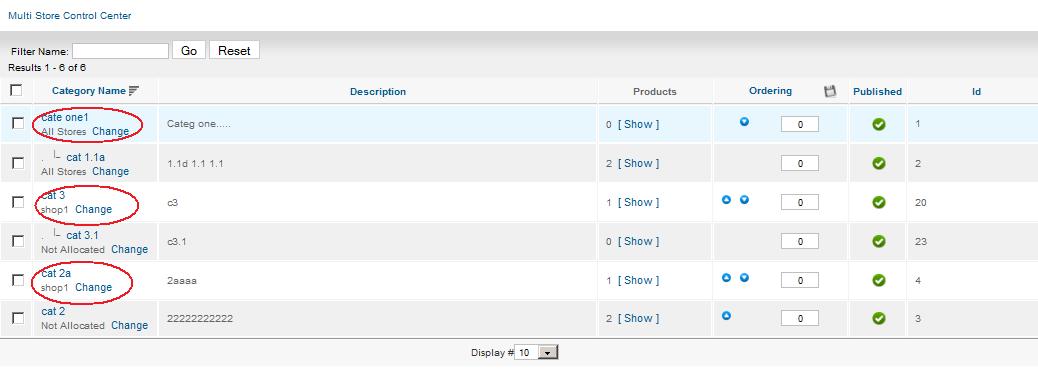
Multi Vendor Product Allocation Link
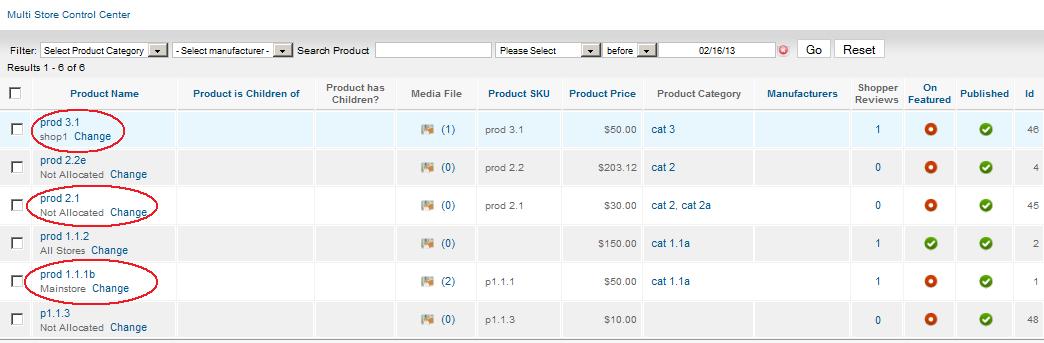
Multi Vendor Category Allocation
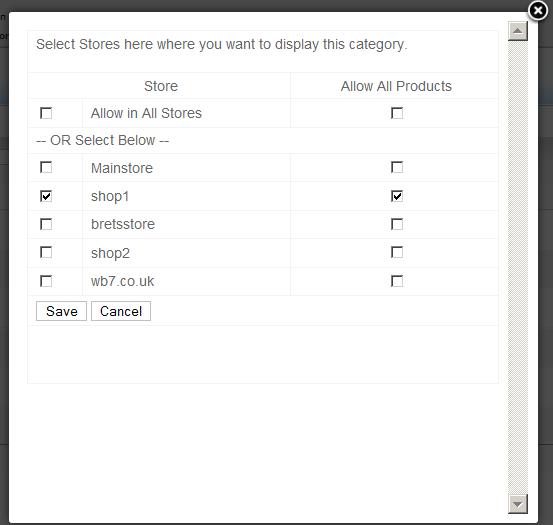
Multi Vendor Product Allocation
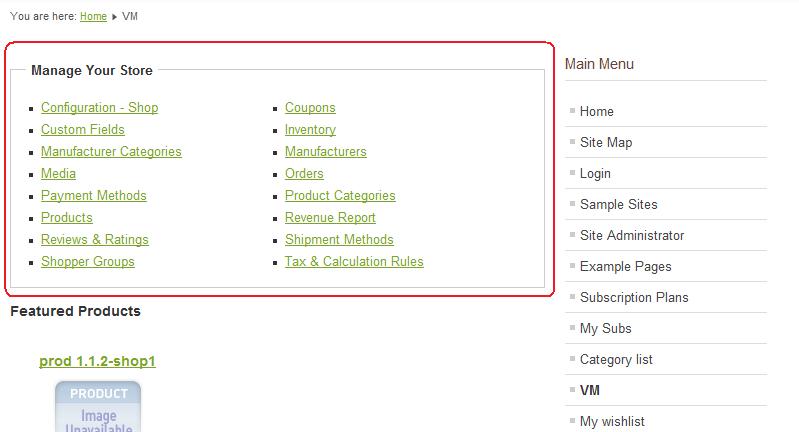
Multi Vendor Front end Store Management Links
When a Vendor or Sub Site administrator logs in to the front end, he will see these links to manage his store from front end. He does not need to login to the back end. He can do all tasks as a registered users. Options shown below can be controlled from Vendor Rights screen above.
In case you are testing on localhost:
Check Multi store installation on localhost.
If you have any questions or require further clarification, please do not hesitate to contact us. We will be happy to help!
Return to the main page for Multi Store Multi Vendor Virtuemart GOLD Version